Call us first
Call your nearest office so we can confirm it’s really us and set up a session for you.

Home / Remote Support
Remote SupportAlready spoken to us? Click Join a remote session below (or scroll down to the join box), enter the code we gave you, and we'll connect securely and help on the spot.
Call your nearest office so we can confirm it’s really us and set up a session for you.
Type the code we give you into the join box below — a small, secure helper app downloads.
Run the download and allow it. Macs need two quick permissions — the guide below shows every screen.
Watch along as we fix the issue. You stay in control and can end the session anytime.
Only join a session after you've spoken with our team. Enter the code your technician gives you in the box below — a small, run-once app downloads so we can securely connect. Never share your session code with anyone who hasn't called you first.
Powered by ScreenConnect (ConnectWise Control). Didn't get a code? Call us first.
Follow the steps for your computer. It only takes a minute, and you can do it yourself — no phone walkthrough needed.
In the Join with a code box above, type the code your technician gives you and click the arrow. (Or just click the link we send you.)
A small file downloads automatically. Look for it at the bottom of your browser or in your Downloads folder — it may be named something like ConnectWiseControl.ClientSetup.exe.
Click the downloaded file to open it.
If a blue “Windows protected your PC” box appears, click More info, then Run anyway. If Windows asks “Do you want to allow this app to make changes to your device?”, click Yes. This is normal and safe.
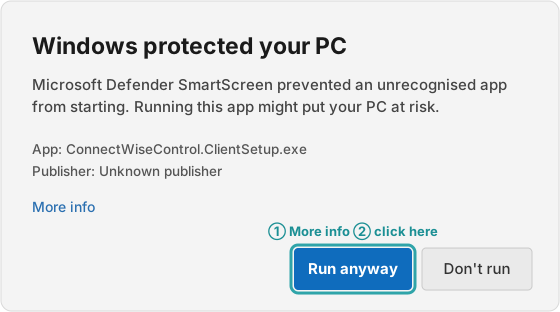
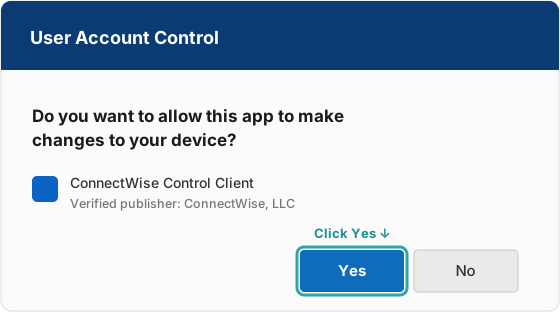
The tool connects in a few seconds. A small coloured bar appears (usually at the top of your screen) to show a session is active — that’s us, ready to help.
You stay in control the whole time and can watch everything we do. To end the session at any point, click the X or Disconnect on that bar.
In the Join with a code box above, type the code your technician gives you and click the arrow.
A file downloads — check your Downloads folder or the download icon in Safari/Chrome. Double-click it, then double-click the installer inside.
Follow the prompts: click Continue, then Install. Enter your Mac login password if asked, then click Install Software.
macOS will ask permission. Open System Settings and click Privacy & Security in the left-hand sidebar. Scroll down the list on the right and click Screen Recording — then switch ON the ScreenConnect / ConnectWise app. This lets us see your screen so we can help.
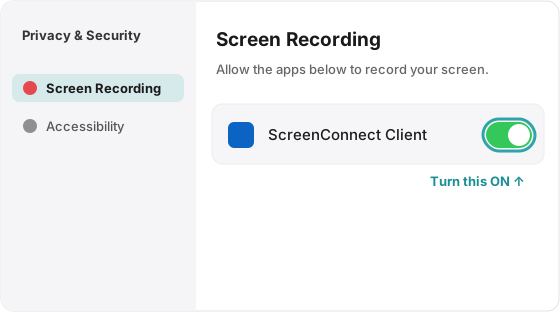
Go back to Privacy & Security and, in the same list, click Accessibility — then switch ON the same app. This lets us move the mouse and type to fix things for you.
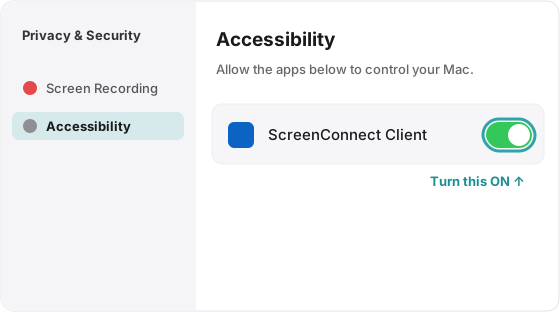
If macOS says the app must restart for the permissions to take effect, click Quit & Reopen (or close the app and open the download again).
Once both switches are on, we can connect. You stay in control and can end the session anytime by closing the app or clicking Disconnect.
The pictures above are examples — your exact screen may look slightly different depending on your Windows or macOS version. Stuck on any step? Call Cowaramup 08 9755 5406 or Busselton 08 9755 8898 and we'll happily help you through it.
Give us a call or book support and we'll work out the fastest way to help.